


1XROLL Download Access Guide for Android iOS Desktop and APK Users
Table Of Content
- Understanding the 1XROLL Download Page
- 1XROLL Android Download Steps for Home Screen Access
- 1XROLL iOS Download Guide for iPhone and iPad Users
- 1XROLL Desktop Download Methods for Windows Devices
- 1XROLL Desktop Access for macOS Users
- 1XROLL APK Availability and App Access Information
- Browser Safety and Shortcut Recommendations
- Helpful Internal Resources for New Members
- Frequently Asked Questions About 1XROLL Download Access
Understanding the 1XROLL Download Page
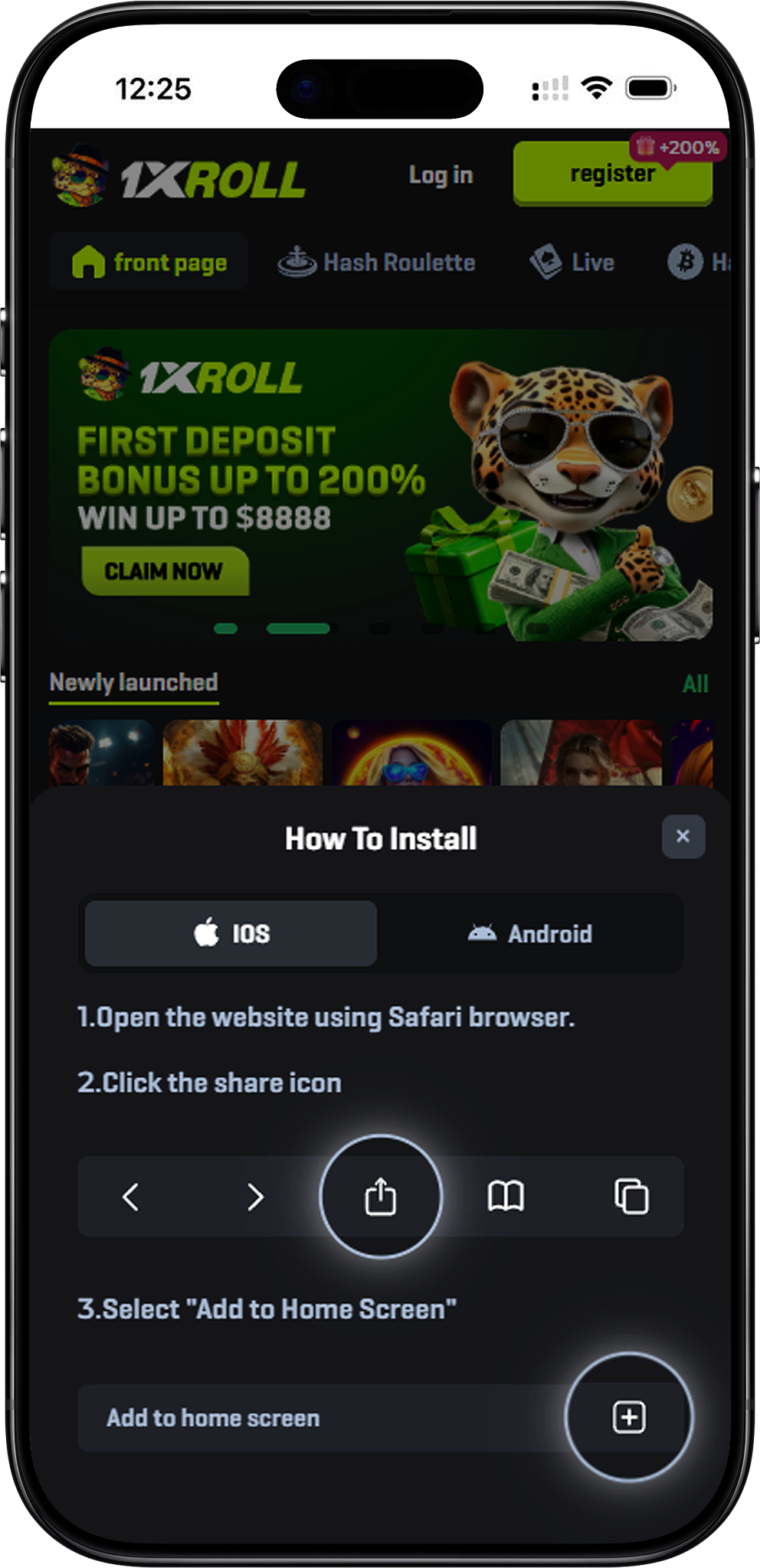
The 1XROLL Download page explains how users can create quick-access shortcuts for Android, iOS, Windows, and macOS devices while the official 1XROLL App is still coming soon. Visitors can also access the platform directly through the naked URL https://1XROLL.com.my/en before setting up shortcuts or browser-based app access.
1XROLL Android Download Steps for Home Screen Access
Step 1: Open Chrome on Your Android Device
Users should launch the Chrome browser on their Android phone or tablet before starting the shortcut setup process.
Step 2: Visit the Official Website
Open the official website page and wait for the platform interface to fully load before continuing.
Step 3: Open the Chrome Menu
Tap the three-dot menu icon located in the top-right corner of the Chrome browser.
Step 4: Select Add to Home Screen
Choose the "Add to Home screen" option to create a fast-access shortcut for future visits.
Step 5: Confirm the Shortcut Name
Enter a preferred name such as 1XROLL and confirm the setup. The icon will then appear on the Android home screen.
Android Browser Shortcut Note
Some devices may display "Install app" instead of "Add to Home screen." If this happens, users may refresh the browser page or briefly enable Airplane Mode before trying again.
1XROLL iOS Download Guide for iPhone and iPad Users
Step 1: Open Safari on iPhone or iPad
The shortcut installation feature works through Safari on supported Apple mobile devices.
Step 2: Visit the Website Page
Enter the website address in Safari and allow the page to finish loading completely.
Step 3: Tap the Share Button
Press the Share button located at the bottom section of the Safari browser interface.
Step 4: Choose Add to Home Screen
Scroll through the menu options and tap "Add to Home Screen" to continue creating the shortcut.
Step 5: Customize and Confirm the Icon
Users may customize the shortcut name before tapping Add. The icon will then appear on the iOS home screen for easier future access.
1XROLL Desktop Download Methods for Windows Devices
Step 1: Use the Drag and Drop Shortcut Method
Open Chrome, Edge, or Firefox and drag the lock icon from the browser address bar directly onto the desktop.
Step 2: Create a Chrome Desktop Shortcut
Chrome users can open the More menu, select More Tools, and choose "Create Shortcut" to generate a desktop access icon.
Step 3: Install the Website as an App in Edge
Microsoft Edge users can select Apps and choose "Install this site as an app" for a more app-like browsing experience.
Step 4: Create a Manual Desktop Shortcut
Users may also right-click on the desktop, choose New Shortcut, paste the website URL, and finish the setup manually.
Windows Desktop Access Tip
Desktop shortcuts can be pinned to the taskbar or Start Menu for faster navigation and easier future access.
1XROLL Desktop Access for macOS Users
Step 1: Open Safari or Chrome
macOS users may use Safari or Chrome to create website shortcuts for quick platform access.
Step 2: Drag the Website Address to the Desktop
In Safari, users can drag the URL or lock icon from the address bar directly to the desktop to create a .webloc shortcut file.
Step 3: Use Chrome Shortcut Features
Chrome users can select More Tools and Create Shortcut to generate a browser shortcut icon for desktop use.
Step 4: Customize the Shortcut Icon
Users may open Get Info on macOS and replace the default icon with a custom image for easier visual recognition.
1XROLL APK Availability and App Access Information
The official 1XROLL APK and mobile application are currently coming soon. Until the official release becomes available, users can continue using browser shortcuts, Android home screen icons, iOS home screen access, and Desktop shortcut methods for faster navigation. Users may also monitor Download and FAQs for future app release updates.
Browser Safety and Shortcut Recommendations
Use Official Browsers for Shortcut Setup
Users should create shortcuts only through trusted browsers such as Chrome, Safari, Edge, or Firefox to reduce compatibility issues.
Keep Devices and Browsers Updated
Regular software updates may improve browser stability, security, and shortcut functionality across Android, iOS, and Desktop devices.
Review Online Security Resources
Users may learn more about safer browsing practices from Cybersecurity and Infrastructure Security Agency before installing shortcuts or managing browser access settings.
Helpful Internal Resources for New Members
Registration and Login Access
New users can create an account through Register or access existing accounts through Login.
Explore Platform Features
Members may visit Games, Lottery, Activity Center, and Rewards Center after accessing the platform.
Learn Through Guides and Tutorials
Helpful resources include Beginner's Guide, 1. Using A Wallet, Currency Purchase Tutorial, HTK, and BINANCE.
Account Information and Policies
Users may also review Deposit, Withdraw, Rebates, Responsible, Fair Play, Terms, and About.
Frequently Asked Questions About 1XROLL Download Access
Is the official 1XROLL App available now
The official application is still under preparation and currently marked as coming soon for supported devices.
Can users create Android shortcuts without downloading an APK
Android users can create home screen shortcuts directly through Chrome without downloading an APK file.
Does the iOS shortcut feature work in all browsers
The Add to Home Screen function works properly through Safari on supported iPhone and iPad devices.
Can Desktop users install the site like an application
Microsoft Edge allows supported websites to behave similarly to applications through the "Install this site as an app" feature.
Where can users learn more about responsible online usage
Users may review Responsible and educational resources from Stay Safe Online for additional digital safety guidance.
Access 1XROLL More Easily Across Multiple Devices
Create Android, iOS, and Desktop shortcuts for quicker platform access while waiting for the official 1XROLL App and APK release.